

what, like it's hard?
more canva hacks to channel your inner elle woods

Have you ever looked at someone’s post and said to yourself “I’d give my left arm to make a post like that” or “I can’t even figure out how to save properly, so I will never figure out how to do that”. The good news is that everything you see by every creator is replicable. Nothing is trademarked or copyrighted (copywritten? copywrote?). You can ABSOLUTELY do all the things you love.

So I’ve been monitoring and tracking and gauging what those “things” that everyone wishes they could do are, and I’m going to spoil some magic tricks for you all. By that I mean, let’s learn how to do them in a way that doesn’t make us want to pull our hair out, shall we?
Book Cover Mockups:
You know the ones that look beyond professional with that little crease on the side and the little shadow? Oh, I’m also so obsessed. Well, there are a couple of ways you can go about making book mockups, both of which are free and easy.
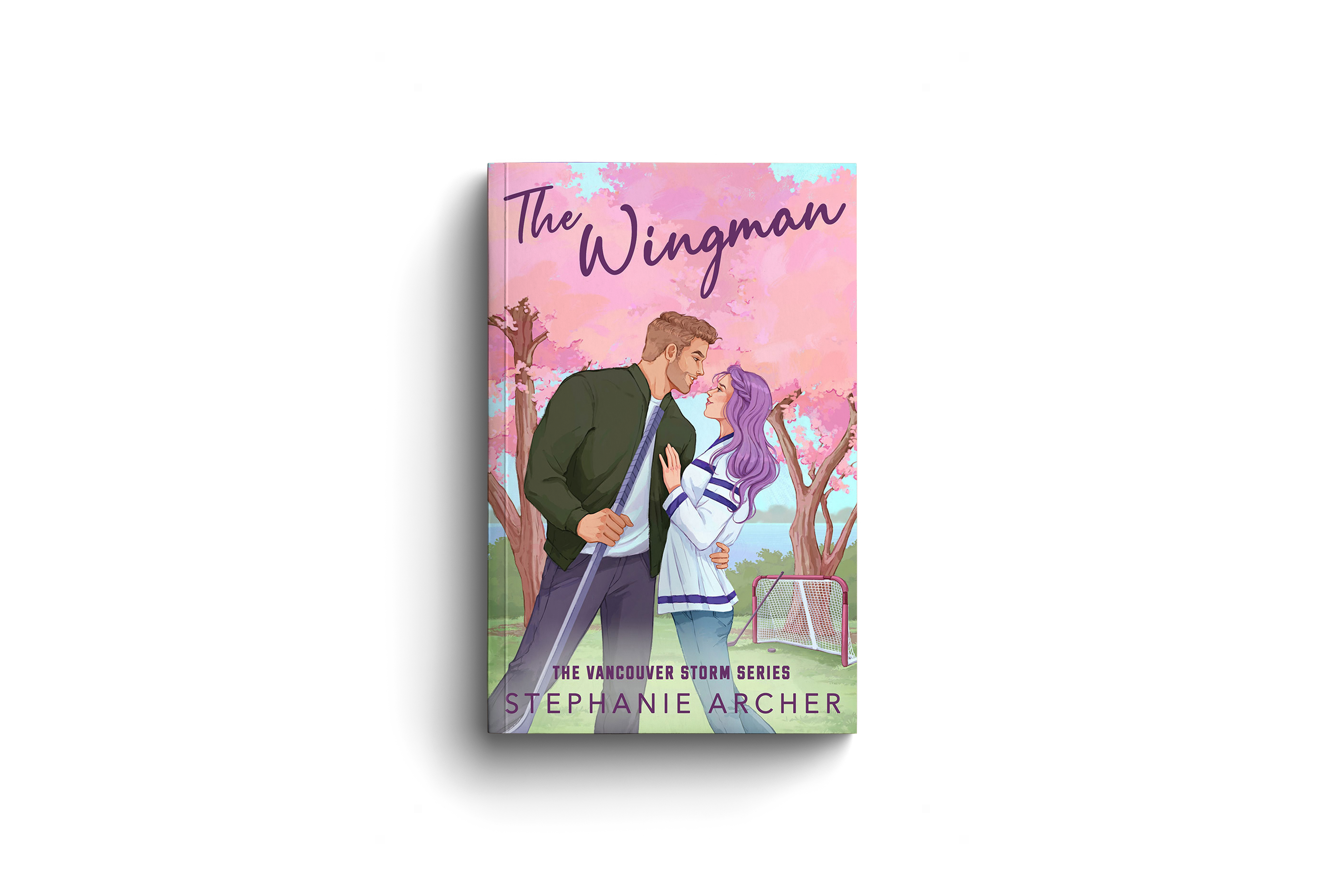
If you don’t want to invest (the time, money, mental anguish, tears) in working directly in Photoshop, you can use Photoshop mockups in Adobe Express or Photopea…FOR FREE!
You’ll want to go download an Adobe Mockup file that you’d like to use (for a simple book mockup, I use this one, but if you go to the Adobe Stock website and search, you will find hundreds of options). Then, go to Adobe Express or Photopea, start a new file using this template, double click the layer that says [YOUR DESIGN], add your cover art, size it, save it and…bingo bango you have a professional grade cover to put on your posts, website, or just start at lovingly.
Magic Resize = Your Magic Tool:
You write once and edit forever - so why design once and stop there?
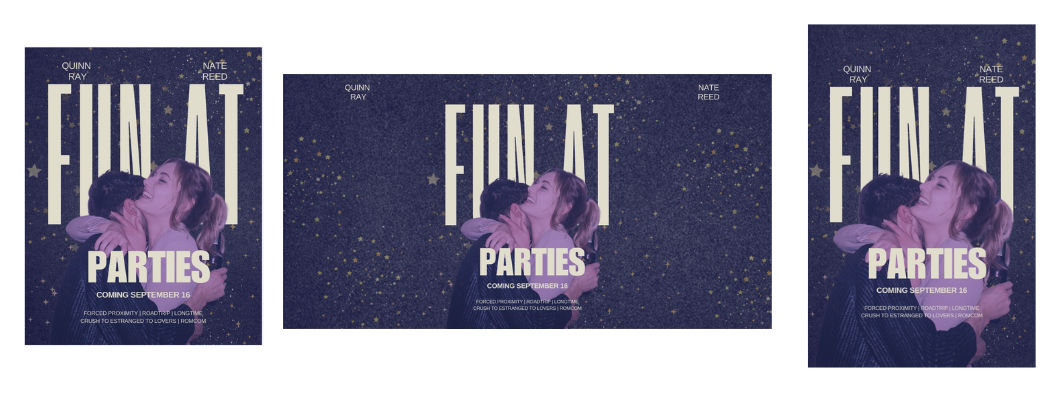
The easiest way to get traction (especially in a world where engagement is low, views are low, the mood is overall low), is by diversifying where you post. Magic Resize lets you recreate posts into Pinterest and Facebook sizes, or a newspaper banner, or an ad without touching a single font slider. It’s the design world’s CTRL+C, CTRL+V, but smarter.
Authors who lean on this hack don’t just save time; they multiply reach. One design becomes an ecosystem: a teaser pin, a Facebook ad, a newsletter banner (plus..plus..plus…). It’s the Swiss Army knife of Canva. Every post you make can (and should) be resized to work harder for you across multiple channels.
Create That Vintage Look (you know the one):
You know those moody, slightly faded, Polaroid-style posts that look like they were pulled from a shoebox in your grandma’s attic? Readers eat that aesthetic UP. It elevates your stock photos and can give your book the right vibes…
Here’s how:
Drop a stock photo in (something that feels close enough to the vibes you want - it does not need to be perfect)
Search “paper texture” or “grain overlay” in Elements
Lower the transparency until it just whispers (I’m talking 10-15% MAX)
Add a sepia or muted color filter over top
Suddenly, your teaser is a scroll-stopping artifact. Perfect for authors leaning into dark academia, historical romance, MOODY autumn, or anything that benefits from a little patina of nostalgia.


Stop Motion Like a Pro (or at least a well-paid amateur):
Static posts are wallpaper. Motion stops the scroll.
Canva lets you fake stop-motion animation, somewhat easily:
Duplicate your design across multiple pages
Make small tweaks - move the book cover slightly, change a character name, swap in a new line of text
Export as a GIF or MP4
What you get is an eye-catching animation that looks deliberate and handmade. It screams indie-cool while making your book feel alive. Readers don’t expect professional Pixar-level animation, but that little bit of movement can feel fun and human.
Bank more content than you know what to do with (with the cunning use of .csv files):
This is the hack that makes you look like you have a full design team behind you. You can upload a CSV spreadsheet and auto-generate dozens (DOZENS) of graphics in minutes (MINUTES).
How can you get this magic working for YOU, you ask?
Set Up Your Spreadsheet (CSV File)
Create columns for each element you want to swap in your template.
Save/export the file as
.CSV.
Build Your Canva Template
Create a single design (e.g., a quote graphic), using your brand kit
Add text boxes for your columns
Click Apps → Bulk Create (bottom of Canva’s left toolbar)
Upload the CSV
Map each column header to the right text box in your design.
Generate Your Graphics
Canva will instantly duplicate your design for each row in the spreadsheet.
You can preview (AND EDIT - make changes to the background or stock image so the posts look fresh even if the template is the same concept) before finalizing.
What does that give you? Consistency, volume, and most importantly frequency. Readers don’t remember a book they see once. They remember it when it keeps hitting their feed again and again and again.
(Plus, mix the .csv file hack with the resize hack and there’s your cross-channel marketing for the next 3 months…all in one afternoon).
REMEMBER:
Readers buy books when they see them often, in ways that feel fresh. These Canva hacks aren’t about making things look pretty - they’re about multiplying touchpoints, creating atmosphere, and freeing you to focus on writing while your visuals work harder for you behind the scenes.
At the end of the day, I’ve said it once and I’ll say it again - you’re not just publishing a story; you’re building a brand. And Canva, when used right, can be one of the sharpest tools in your marketing kit.
Happy creating, besties!
xo
Ada